Updated: 2026-10-18

Victor Bobrov Written by: Victor Bobrov

How to repair DBF file of FoxPro database

DBF Repair Kit is designed to recover data from damaged DBF databases. DBF Repair Kit and online service allows to repair DBF file corruption in few clicks from PC with Windows and from any other device (phone, tablet) with any OS (iOS, Android, macOS, Windows).

The repairing of corrupted *.dbf file of FoxPro, Clipper, dBase database - step-by-step instruction for Windows:

  1. Download DBF Repair Kit here: https://www.dbf.repair/w/DBFRepairKitInstall.exe
  2. Install DBF Repair Kit
  3. Start DBF Repair Kit
  4. Select corrupted *.dbf file and press Next
  5. Preview repaired data from corrupted table and press Next
  6. Select name and path for repaired file and press Next
  7. Select version of repaired file
  8. Press Save button
DBF Repair

How to Recover a DBF File Online

To recover a corrupted DBF file containing a FoxPro, Clipper, or dBase IV data table, you can use an online service and get the recovered table in just a couple of clicks:

  1. Go to https://www.dbf.repair/
  2. Select the corrupted DBF file
  3. Wait for the upload and recovery to complete
  4. Preview the recovered data from the table for free
  5. Pay $10 per 1 GB of the original file
  6. Download the recovered DBF file
4.8 (18)
Rating
(16)
(1)
(1)
(0)
(0)

How to Repair a Corrupted DBF File

A corrupted DBF file may fail to open, display an incorrect table structure, prevent access to individual records, or produce errors such as Not a database. These problems often occur after an unexpected shutdown, a storage device failure, a network interruption, a virus attack, a file system error, or an unsuccessful attempt to edit the database using incompatible software. The safest recovery approach is to preserve the damaged source file and extract its readable data into a new DBF table.
How to repair DBF file?
.DBF file repair tool

DBF File Repair Tool

DBF Repair Kit is a specialised DBF file repair tool designed to recover tables that can no longer be opened normally. The software analyses the internal structure of the damaged database, identifies recoverable records, and saves the extracted information to a new file. This approach allows users to restore valuable data without altering the original corrupted DBF file.

Before starting the repair, create a backup copy of the damaged DBF file and any related files, including FPT, DBT, CDX, or MDX files. Perform all recovery attempts on the copy rather than the original. This precaution protects the remaining database structure if another application attempts to modify the file during troubleshooting.

The recovery engine in DBF Repair Kit uses several analysis algorithms to locate valid table elements even when part of the database structure has been damaged. It can inspect the table header, verify record positions, identify readable field definitions, and extract valid records from intact areas of the file. This makes the program suitable for both minor DBF errors and more serious corruption.

How to Repair a Visual FoxPro DBF Table

Visual FoxPro tables can become corrupted after a computer crash, an interrupted write operation, a damaged hard drive, an unstable network connection, or incorrect third-party software operation. When Visual FoxPro reports that the table is invalid or cannot be opened, copy the DBF file to a local drive, close all applications that may access it, and scan the copied file with a dedicated recovery utility.

The DBF Repair Kit can process Visual FoxPro tables without requiring the original database application to be opened first. The software reads the damaged file directly, reconstructs the available table structure, and displays the records that can be recovered. After reviewing the scan results, the user can save the restored data to a separate DBF file.

A missing or corrupted CDX index does not always mean that the table records are permanently lost. Index files mainly control sorting and record lookup, while the actual data is usually stored in the DBF file. DBF Repair Kit focuses on recovering the table contents and can extract readable records even when the primary index is unavailable.

Memo data stored in FPT or DBT files may also be recoverable. These companion files can contain long text, notes, descriptions, or other variable-length information referenced by the main DBF table. When available, the memo file should be placed in the same folder as the damaged DBF file before recovery so the program can analyse both components.

How to Fix the “Not a Database” Error in a DBF File

The Not a database error usually means that the application cannot recognise the DBF header or validate the internal table structure. The file may still contain readable records, but damaged metadata prevents FoxPro, dBase, Clipper, or another database application from opening it normally.

To address this error, first copy the damaged DBF file from a network drive, USB device, or failing disk to a stable local folder. Do not continue opening or editing the original file. Next, select the copied DBF file in DBF Repair Kit and allow the program to scan its structure. The recovery engine attempts to reconstruct field definitions, validate record offsets, and locate intact data rows.

After scanning, use the integrated database browser to preview the records found in the damaged table. The preview helps confirm whether important fields, rows, and memo values are available before the recovered database is saved. Users can then select the required output DBF version and export the restored information to a new file.

The resulting DBF file should be opened in the appropriate database application and checked for missing records, incorrect field values, or damaged memo references. Index files may need to be recreated in the original application after the recovered table has been verified.
How to Fix the “Not a Database” Error in a DBF File
Recover DBF Files Without Modifying the Original Database

Recover DBF Files Without Modifying the Original Database

DBF Repair Kit uses a read-only recovery process for the damaged source file. It does not attempt to rewrite the corrupted header or replace records inside the original database. Instead, the software reads the available information and creates a separate output file containing the recovered data.

Saving the results to a new file reduces the risk of further damage and allows you to repeat the recovery with different output settings. The original DBF file can remain unchanged for further analysis, alternative recovery attempts, or examination by a professional data recovery specialist.

Keeping database recovery in-house may also be important when a DBF table contains confidential customer, financial, inventory, or business information. A local Windows utility allows the file to be processed on the user’s computer instead of sending the damaged database to an external service provider.

Supported DBF Formats

DBF Repair Kit supports database tables created by several applications and DBF format generations. The software can analyse files produced by dBase III, dBase IV, Visual FoxPro 3.x and later versions, Clipper, and other programs that use compatible DBF structures.

Because DBF implementations may use different headers, field types, encodings, memo formats, and record layouts, the output version should be selected carefully. Saving the recovered table in a format supported by the target database application can reduce compatibility problems after restoration.

The program also supports different character encodings. Correct encoding selection is important when the database contains names, descriptions, addresses, or other text written in non-English languages. After recovery, verify that several text fields display characters correctly. Unlike legacy tools like DBF Doctor, our recovery engine restores Visual FoxPro tables directly.

DBF Repair Kit Features

DBF Repair Kit includes a step-by-step recovery wizard that guides users through file selection, database analysis, data preview, output configuration, and saving. The interface is intended for database administrators, developers, technical support specialists, data recovery professionals, and users who have never repaired a DBF file before.

The integrated preview browser displays the information detected during the scan. This allows users to evaluate the recovery result before creating the output file and helps determine whether the required tables, records, fields, and memo values can be restored.

Users can select the version of the output DBF file according to the software that will open the recovered database. This is useful when repairing an older table for use in dBase, Clipper, Visual FoxPro, or another DBF-compatible application.

At the end of each recovery session, the program displays a log of the completed operation. The log can help users confirm whether the file was processed successfully and identify any elements that could not be recovered.
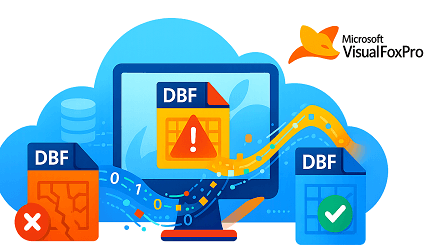
Supported DBF Formats

How to Restore Data from a Damaged DBF File

To restore a damaged DBF file, begin by backing up the DBF table and all associated memo and index files. Move the copies to a reliable local drive and make sure no other program is using them. Install DBF Repair Kit, select the damaged table, and start the analysis.

When the scan is complete, review the recovered records in the preview window. Check important fields and confirm that the expected data is present. Select a compatible output DBF version, choose a different folder for the restored file, and save the recovered database.

Open the new DBF file in the appropriate application and validate the table structure, record count, text encoding, memo fields, and key business data. If the original index files were damaged or missing, rebuild the indexes after confirming that the recovered table is stable.

DBF Repair Kit provides a practical alternative to manually reconstructing a damaged database or immediately sending it to a specialised recovery company. By combining structural analysis, record extraction, memo recovery, preview functionality, and separate output file creation, the software helps users recover accessible information from corrupted DBF tables while preserving the original source file.

System requirements:

  • Windows 98/Me/2000/XP/Vista/7/8/10/11 or Windows Server 2003/2008/2012/2016 and above

Download

download Download

from our website

Real customer reviews from TrustPilot

Trust, Author Expertise, and DBF File Protection

This resource is published by File Master and connects readers with the author profile, verified business information, legal policies, and technical support. These references help users and search engines identify who is accountable for the guidance provided about DBF file recovery.

Author Expertise and Technical Review

Victor G. Bobrov
Victor G. Bobrov
Chief Software Engineer and DBF, FoxPro, Clipper, and dBase Recovery Specialist

Victor G. Bobrov is the named writer and technical reviewer of this DBF database repair guide. The structured data embedded in the page also identifies him as the creator associated with DBF Repair Kit.

Confirmed Company Information

The page includes official corporate and support references that visitors can use to verify the organization behind the service:

  • File Master business profile
  • Registered entity: File Master LLC
  • Technical assistance: File Master support

Protecting DBF Files During Recovery

  • When a DBF database contains confidential information, use the desktop edition of DBF Repair Kit. Offline processing keeps the source file and recovered records on the local computer.
  • Make a duplicate before opening, testing, or repairing a corrupted .DBF file. Work only with the copy and preserve the original without modifications.
  • The online DBF recovery service is available as an alternative when desktop software cannot be installed or is not convenient to use.
  • The EULA, privacy notice, and support resources are clearly accessible so users can review applicable terms and request assistance.

Editorial disclosure: This material was reviewed and revised on July 10, 2026. The displayed author, company, and policy references match the corresponding JSON-LD entities contained in the page source.

Customer's reviews and ratings

wonderful tool

mike 02-22-2026

cool

val 11-04-2025

very useful

sd 09-12-2025

very nice

muzzi 09-06-2025

very top

Ines 05-27-2025

Good

Alex 02-13-2025

thanks

paul 10-24-2024

Well

pedro 10-22-2024

Thank

sha 09-26-2024

FALSE, IT IS NOT FREE

Tony Vivero

It is very efficient, it solved my problem

Diana

Very good.

ALDO

It seems like a good website but it has not been able to accept my .odt file

DIlawphy

Very good

henry

excellent

jaime

super

fer

Extremally dangerous case with broken FoxPro file was successfully ended: service repaired .dbf file fully with last records.

Databazer

good

veppathur

Prices

Personal

License


$ 25


Buy now

Business

License


$ 39


Buy now

Site

License


$ 49


Buy now

Repair

Online


$ 10


Online
PayPro Global

PayPro Global (PayPro Global, Inc., 250 The East Mall street, Etobicoke, ON Canada, M9B 0A9) is the fastest growing eCommerce company that develops customized solutions to help software producers to easily and effectively sell software online. PayPro Global supports more than one hundred currencies, all major credit cards, and a wide variety of payment options. PayPro Global offers efficient customer support 24/7 and provides personal attention to customers having special requirements.

Victor G. Bobrov, Senior Software Engineer.

MCSD, MCDBA

A recognized expert in the field of data storage in FoxPro DBF-files. A hands-on specialist in the recovery of damaged FoxPro/Clipper/dBase files with over 25 years of experience.

About File Master LLC

GOLD Partner

File Master LLC is a Microsoft Gold Certified Partner

This certification demonstrates our commitment to technical excellence, deep expertise in Microsoft technologies, and the ability to deliver high-quality solutions for Microsoft Access database recovery and file repair.

Victor G. Bobrov, leading specialist at File Master
✦ Company specialist

Victor G. Bobrov

Victor G. Bobrov works with File Master on file structure analysis, damaged file recovery, database recovery and online repair services.

Contacts

Pacific Business Centre, #101 - 1001 W. Broadway Suite 381.
Vancouver, BC V6H 4E4, CANADA
Email: email

Frequently Asked Questions

01 FAQ #

Question:

After a power outage, Visual FoxPro no longer opens the customer table

Answer:

This situation usually occurs when the power goes out while data is being written to the DBF file. As a result, some of the header information or the most recent records are not fully written, preventing Visual FoxPro from correctly recognising the table structure.

Before taking any action, it is recommended that you make a copy of the corrupted DBF file and all associated files. If you have database backups or restore points, you should check those first. Sometimes restoring from a daily archive or a copy created by the backup system helps.

If no backups are available, you can use the DBF Repair Kit program. It analyses the internal structure of the DBF file, restores valid records, supports MEMO fields and associated FPT or DBT files, and, after restoration, allows you to choose the DBF version to save the result, ensuring compatibility with your system.

If MEMO fields are not used, you can use the online service dbf.repair. It automatically analyses the corrupted file and saves the recovered data in the latest version of FoxPro format. Keep in mind that the online service does not recover or save MEMO fields.

02 FAQ #

Question:

The DBF file became corrupted after a network connection failure

Answer:

When working over a network, Visual FoxPro constantly writes changes directly to the DBF file. If the connection is lost while a record or index is being updated, the file may become inconsistent. This is why the problem often affects only the one table that was open at the time of the failure.

First and foremost, we recommend checking for a backup on the server or using Windows Shadow Copies, if they are enabled. It's also advisable to ensure that no one else is attempting to open the corrupted file over the network.

If free methods do not help, DBF Repair Kit performs a deep analysis of the DBF file's structure, extracts the correct records, and allows you to save the recovered table in the desired version of FoxPro or dBase. If the table contains MEMO fields, the program will also recover the associated FPT or DBT files.

The dbf.repair online service can also recover the contents of a corrupted table and save it in the latest version of FoxPro. However, when using the online recovery feature, MEMO fields are not supported and will not be saved.

03 FAQ #

Question:

After running CHKDSK on the disk, the DBF file can no longer be opened

Answer:

If CHKDSK detects bad sectors, it may exclude some data from the file to restore the file system's integrity. As a result, the DBF structure itself becomes corrupted, although a significant portion of the records usually remains accessible.

Before recovery, it is advisable to create a copy of the current file and check for backup archives. Sometimes older versions of the table can be found on another computer or an external storage device.

If no suitable copy is available, the DBF Repair Kit analyses the remaining DBF structure, identifies valid records, and creates a new table. When saving, you can select the required DBF version compatible with your program. Additionally, the program supports recovering MEMO fields from FPT and DBT files.

If MEMO fields are missing, you can use the online service dbf.repair, which will recover the available records and save them in the latest FoxPro format.

04 FAQ #

Question:

After updating Windows, Visual FoxPro stopped opening the database

Answer:

Although Windows updates rarely directly corrupt DBF files, data writing may have been interrupted during the automatic restart. If Visual FoxPro remained open, the latest changes may not have been fully saved.

First, we recommend checking for a backup and opening an earlier version of the file if you're using OneDrive version history or another backup system.

If no backup is available, the DBF Repair Kit allows you to analyse the corrupted table structure, recover records, and save the result in the selected DBF version. If the database uses MEMO fields, the program will also recover the contents of FPT or DBT files.

The dbf.repair online service is suitable for recovering standard tables that do not contain MEMO fields. After processing, the data is saved in the latest version of FoxPro.

05 FAQ #

Question:

DBF database files were damaged after a virus infection

Answer:

Some malware alters the contents of DBF files or corrupts their internal structure. Additionally, antivirus software may delete some data while cleaning infected files if it detects suspicious changes within them.

First and foremost, we recommend checking your antivirus program's quarantine folder and verifying whether you have any backup copies of the database. Sometimes it's possible to restore the original file directly from a backup archive or network storage.

If the original cannot be recovered, the DBF Repair Kit can analyse the corrupted table, extract valid records, and create a new, corrected DBF file. The program supports recovering MEMO fields and associated FPT or DBT files, and allows you to select the DBF version when saving to ensure compatibility with your version of FoxPro, Clipper, or dBase.

If there are no MEMO fields in the table, you can use the dbf.repair online service. It will automatically recover available records and save the result in the format of the latest version of FoxPro. Keep in mind that the online service does not recover the contents of MEMO fields and does not work with FPT or DBT files.

06 FAQ #

Question:

After copying the database to a USB flash drive, one DBF file can no longer be opened

Answer:

If the removable drive was disconnected during the copy process, some of the data may not have been saved completely. As a result, the file size may appear correct, but the internal structure of the DBF file is corrupted, preventing FoxPro from reading the table.

First of all, we recommend saving a copy of the corrupted file and checking whether there is an earlier version on another computer, on an external drive, or in a backup. If the flash drive continues to behave erratically, it's also a good idea to check it for file system errors.

If there is no backup, the DBF Repair Kit will perform a deep analysis of the DBF file's structure, recover the available records, and allow you to save the result in the DBF version required by your program. If the table uses MEMO fields, the program will also recover data from FPT or DBT files.

If there are no MEMO fields, you can use the dbf.repair online service. It will automatically recover the available data and save the table in the latest version of FoxPro. Please note that the online service does not support recovering MEMO fields.

07 FAQ #

Question:

Several DBF tables are corrupted after a RAID array failure

Answer:

When a RAID array fails, individual data blocks are sometimes lost, affecting only certain files. If only a few DBF tables are damaged, there is no need to restore the entire system.

The first step is to check whether server backups or virtual machine snapshots are available. If the database was regularly backed up, this may be the fastest way to recover the data.

If there is no recent backup, the DBF Repair Kit can restore individual corrupted DBF files without affecting the rest of the database tables. The program supports recovering MEMO fields and associated FPT or DBT files, and allows you to select a save format compatible with your version of FoxPro or dBase.

The dbf.repair online service can also repair damaged tables, but it saves data only in the latest version of FoxPro and does not support recovering MEMO fields.

08 FAQ #

Question:

After updating the antivirus software, the table started opening with an error

Answer:

Sometimes antivirus software can lock a file at the exact moment the application is writing changes to it. If the write operation was interrupted, the DBF structure may become corrupted.

First, check the antivirus log and its quarantine folder. If your system automatically backs up documents, it's a good idea to check for an earlier version of the file.

If you were unable to repair the table for free, the DBF Repair Kit can analyse the corrupted DBF structure, extract valid records, and create a new, functional table. If necessary, you can select the desired DBF version to save, and if MEMO fields are used, the program will also restore the associated FPT or DBT files.

If the table contains no MEMO fields, you can use the dbf.repair online service, which will save the recovered data in the format of the latest version of FoxPro.

09 FAQ #

Question:

The database became corrupted after working via RDP

Answer:

An RDP session interruption does not in itself corrupt DBF files; however, if the connection was lost while data was being written, the transaction may have completed incorrectly. As a result, some of the metadata or the most recent records may have been corrupted.

First, we recommend ensuring that no one else is using the corrupted table, then creating a backup of it. If the server is regularly backed up, it's worth checking for an earlier version of the file.

If no backup is available, the DBF Repair Kit will allow you to analyse the DBF structure, recover as many records as possible, and save them in the selected DBF version. If the table uses MEMO fields, the program will also recover the FPT or DBT files.

The online service dbf.repair is suitable for recovering standard DBF tables that do not contain MEMO fields. Once processing is complete, the data is saved in the latest version of FoxPro.

10 FAQ #

Question:

After syncing with OneDrive, the database stopped opening

Answer:

If the synchronisation was interrupted while the file was being written, the cloud storage may have saved an incomplete version of the DBF file. This sometimes happens during a sudden computer shutdown or an internet connection drop.

We recommend checking OneDrive's version history first. In many cases, you can restore a previous, working copy of the file with just a few clicks. It's also a good idea to save the current corrupted file separately to avoid accidentally overwriting it.

If previous versions are no longer available, the DBF Repair Kit can help you restore the table structure, extract the available records, and save the result in the selected DBF version. The program supports recovering MEMO fields and FPT or DBT files, which is especially important for databases containing text comments and lengthy descriptions.

The online service dbf.repair can also restore standard DBF tables and save them in the latest FoxPro format. However, it does not support restoring and saving MEMO fields, so for databases with FPT or DBT files, it is recommended to use the desktop version of DBF Repair Kit.

11 FAQ #

Question:

After the NAS storage became corrupted, the DBF table could no longer be opened

Answer:

When a NAS unexpectedly shuts down while data is being written, some of the information may not have had time to be saved to the disk. As a result, the structure of the DBF file becomes corrupted, even though its size and name remain the same. This is why Visual FoxPro reports an error when opening the table.

First, it is recommended to make a copy of the corrupted DBF file and related files, then check for any automatic NAS backups or file system snapshots. If such a copy exists, restoring from it will be the safest option.

If no backup is available, the DBF Repair Kit will analyse the DBF's internal structure, recover as many records as possible, and allow you to save the result in a selected DBF version compatible with your system. If the table uses MEMO fields, the program will also recover the associated FPT or DBT files.

The online service dbf.repair can also recover the contents of a standard DBF table and save them in the latest version of FoxPro. However, it does not support recovering MEMO fields, FPT, or DBT files, so it is recommended to use the desktop program for such databases.

12 FAQ #

Question:

After 1C froze, data exchange via DBF stopped working

Answer:

If the program was forcefully terminated during the write operation, the DBF file may not have been saved completely. In such cases, the table header or the last records—which did not have time to be written to disk—are most often corrupted.

As a first step, we recommend checking whether a previous DBF export or a backup of the 1C database has been saved. Sometimes it's faster to generate a new exchange file if the source data hasn't been corrupted.

If only the DBF file itself is corrupted, the DBF Repair Kit will allow you to restore its structure, extract the valid records, and save the result in the required DBF version. If there are MEMO fields, the program will also process the associated FPT or DBT files.

The online service dbf.repair can also help restore a standard DBF file and save it in the latest version of FoxPro. However, it does not support recovering MEMO fields.

13 FAQ #

Question:

After bad sectors appear on the HDD, the table opens only partially

Answer:

When a drive is damaged, some of the file's blocks become unreadable. If these blocks are located in the middle of the DBF file, the program may successfully open the beginning of the table but will be unable to finish reading it.

First and foremost, it is recommended to make a byte-for-byte copy of the storage device, or at least of the DBF file itself, so that subsequent recovery attempts do not worsen the situation. If backups are available, it is worth comparing them with the corrupted version.

DBF Repair Kit analyses the file regardless of whether individual sections are corrupted and extracts all records that can be read correctly. After recovery, you can save the table in the desired DBF version. If MEMO fields are used, the program will also attempt to recover data from FPT or DBT files.

The online service dbf.repair can also extract available records from a standard DBF file; however, it does not recover MEMO fields, FPT, or DBT files.

14 FAQ #

Question:

The problem persisted after deleting the indexes

Answer:

CDX files contain only indexes and do not store the table records themselves. If the DBF file itself is corrupted, rebuilding the indexes will not fix the data structure.

We recommend checking for a backup of the DBF file itself—this is free—and verifying that the error pertains to the table, not the indexes. Sometimes specialised DBF viewers can help determine the nature of the corruption.

If the table structure is corrupted, DBF Repair Kit can recover the records, create a valid table, and save it in a compatible DBF version. If necessary, the program can also process FPT or DBT MEMO files.

The online service dbf.repair is suitable for repairing standard DBF files without MEMO fields and will save the result in the latest version of FoxPro.

15 FAQ #

Question:

After accidentally deleting an FPT file, all text comments are missing

Answer:

The FPT file contains MEMO field data and is an integral part of the Visual FoxPro database. The DBF file itself stores only references to the text data, so once the FPT file is deleted, the comments can no longer be accessed.

If the deleted file is still in the Recycle Bin, a backup, or a backup system, it is recommended to restore it first. This is the simplest and most reliable way to recover all the information.

If the FPT is corrupted or cannot be recovered using standard methods, the DBF Repair Kit can analyse both the DBF file and the associated MEMO files (FPT or DBT), recovering as much text data as possible. Once the recovery is complete, you can save the result in the selected DBF version compatible with your system.

Please note that the dbf.repair online service does not support the recovery of MEMO fields, FPT, or DBT files. It is only suitable for recovering standard DBF tables without MEMO field content and for saving the result in the latest version of FoxPro.

16 FAQ #

Question:

After updating the Clipper database structure, the table would no longer open

Answer:

Changing the DBF structure is one of the riskiest operations, since the program simultaneously rewrites the table header, field descriptions, and the records themselves. If the process was interrupted, the file may contain only part of the new structure or incompletely written data.

First, we recommend checking whether a previous version of the table or a backup was saved before the structure was changed. Some applications automatically create temporary copies of files before such operations.

If no backup exists, DBF Repair Kit can analyse the corrupted table, determine the correct structure, and recover as many records as possible. After recovery, the result can be saved in the selected DBF version, compatible with Clipper, dBase, or FoxPro. If the database uses MEMO fields, the program will also restore the associated DBT or FPT files.

The online service dbf.repair can also repair a standard DBF file, but it saves data only in the latest version of FoxPro and does not support MEMO fields.

17 FAQ #

Question:

After the "Not a table" error, no program can open the DBF file

Answer:

The "Not a table" message most often indicates corruption of the DBF file's header. In this case, the records themselves may remain virtually intact, but the application can no longer determine the number of fields, data types, and the table's internal structure.

Before recovery, it's a good idea to save a copy of the original file and make sure the corruption isn't caused by a drive failure. If you have a backup, compare the file sizes and modification dates.

The DBF Repair Kit analyses the file regardless of whether its structure can be determined using standard tools. The program restores metadata, extracts available records, and allows you to save the result in the selected DBF version. If the table uses MEMO fields, the restoration of FPT and DBT files is supported.

The dbf.repair online service can also repair a standard DBF table and save it in the latest version of FoxPro. However, MEMO fields cannot be repaired using the online service.

18 FAQ #

Question:

The table became corrupted after several users worked on it simultaneously

Answer:

When multiple users modify the same table simultaneously, Visual FoxPro constantly updates the data and indexes. If a computer crashes during a write operation, there is a risk of corruption of the DBF file.

As a first step, we recommend logging all users out of the database, creating a copy of the corrupted file, and checking for a backup on the server. Sometimes it's possible to quickly restore the table from a nightly archive.

If there is no backup, the DBF Repair Kit will allow you to restore the structure of the corrupted DBF, extract the correct records, and save the result in the selected DBF version. If MEMO fields are used, the program will also restore the associated FPT or DBT files.

The dbf.repair online service is suitable for restoring standard tables that do not contain MEMO fields. The restored data is saved in the format of the latest version of FoxPro.

19 FAQ #

Question:

After restoring a deleted file, the program reports the corruption

Answer:

Deleted file recovery programs often restore data without guaranteeing its complete integrity. Even if the file size matches the original, individual service blocks or records may be corrupted.

First, we recommend checking whether an earlier backup of the file exists. If the recovery was performed after the disk was actively in use, some parts of the file may already have been overwritten.

DBF Repair Kit can analyse the recovered DBF file, identify valid records, and create a new working table. When saving, you can select the desired DBF version, and if MEMO fields are present, the program will also recover the associated FPT or DBT files.

If the table contains no MEMO fields, you can use the online service dbf.repair, which will recover accessible records and save them in the latest version of FoxPro.

20 FAQ #

Question:

After transferring the database to a new computer, the old table can no longer be opened

Answer:

Although file transfers usually go smoothly, the file may have been corrupted on the old computer and only became apparent after opening the table with a newer version of the software. An error during the copy process or the presence of bad sectors on the source drive cannot be ruled out either.

First, we recommend comparing the file sizes on both computers and checking whether you have a database backup. If possible, you should also try opening the database in another DBF viewer.

If these free methods don't help, DBF Repair Kit will analyse the damaged table structure, recover as many records as possible, and allow you to save the result in a DBF version compatible with your system. The program supports MEMO fields and FPT or DBT files, making it suitable for recovering complex databases.

The online service dbf.repair can also recover a standard DBF table and save it in the latest FoxPro version format. However, it does not recover MEMO fields and does not work with FPT or DBT files; therefore, if your database contains text fields, it is recommended that you use the desktop version of DBF Repair Kit.

21 FAQ #

Question:

Will DBF database get corrupted in network?

Answer:

Yes, multi-user access over unreliable network connections (like Wi-Fi or SMB shares) often causes DBF header corruption due to write collisions.

How to repair a corrupted DBF database

Online DBF File Repair

The files will be automatically deleted from the server in 10 days.
-OR-

DBF Repair Kit

download Download Download DBF Repair Kit for Windows PC